
Team Collaboration
Invite team members and control which forms they can access
SmartFormify team settings let you invite members, choose their account role, and decide whether they can work with every form or only specific forms.
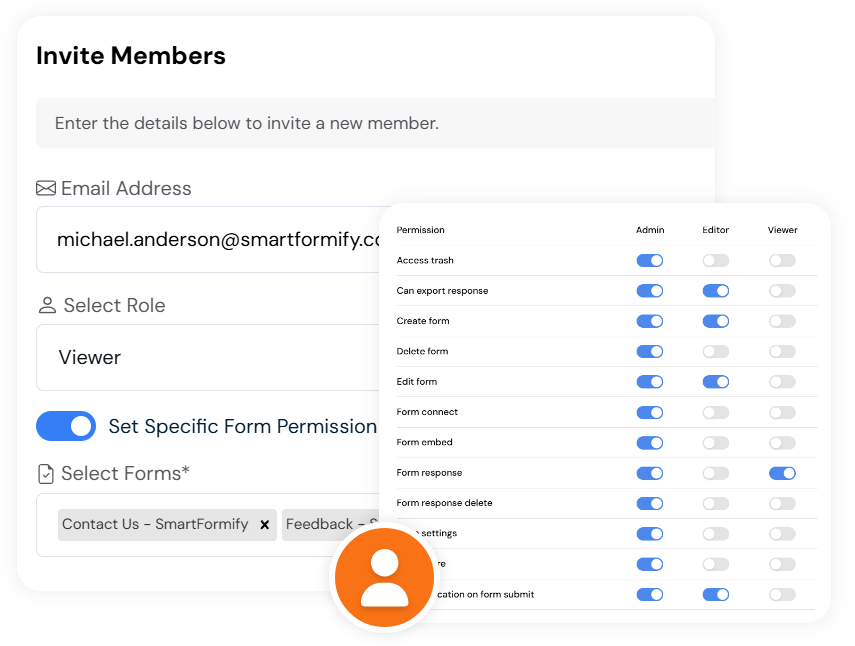
Exact account controls
Manage members from the subscription team area
The member screen lists each person's name, email, role, assigned forms, and status. From there you can change permissions, activate or deactivate a member, or remove them.
Invite by email
Send an invitation to a new team member from the account screen.
Choose a role
Set the member as Admin, Editor, or Viewer.
Limit form access
Use specific form permission when a member should only see selected forms.
Invitations
Keep pending invites visible
SmartFormify also has an invited members list. It shows email, account type, assigned forms, and status, with actions to cancel, resend, or copy the invitation URL.
Resend invite
Send the invitation again when the first email was missed.
Copy invitation URL
Copy the invite link directly from the pending invitation row.
Cancel invitation
Remove a pending invite before the person joins.
Email and role
Keep the pending email address and account type visible.