
How to Send Contact Form Data to Google Sheets Automatically
Learn how to automatically send contact form data to Google Sheets so every submission is organized, searchable, and easy to manage.
Many businesses use Google Sheets to organize customer enquiries.
It is simple, familiar, and easy to share with team members.
The problem begins when every contact form submission has to be copied into the spreadsheet manually.
This takes time and increases the chance of mistakes.
A much better solution is to send every contact form submission directly to Google Sheets automatically.
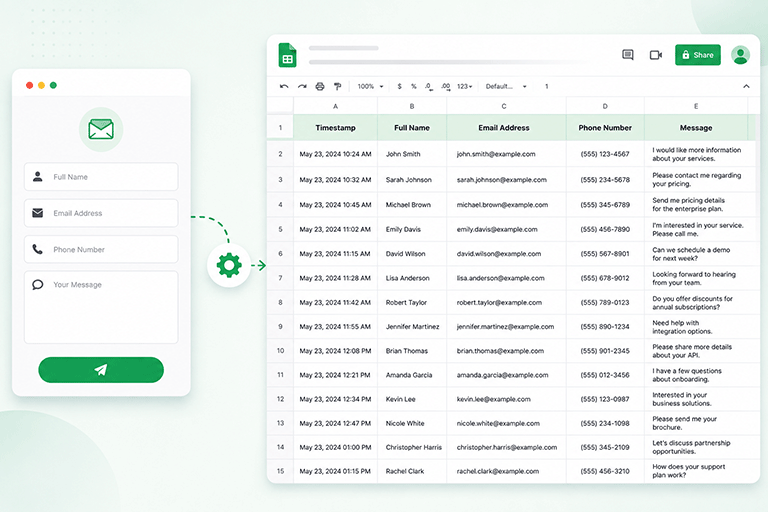
As soon as a visitor submits your form, the information appears in your spreadsheet without any manual work.
This saves time, keeps your records organized, and helps your team respond more efficiently.
Why Use Google Sheets for Form Submissions
Google Sheets is more than a spreadsheet.
It allows businesses to:
- Organize customer enquiries
- Search previous submissions
- Share information with team members
- Create reports
- Track leads
- Monitor business activity
For many small and growing businesses, it is an excellent way to manage incoming enquiries.
The Problem With Manual Data Entry
Many businesses still receive contact form submissions by email and then copy the information into a spreadsheet.
This process creates several problems.
It takes extra time.
Typing mistakes can happen.
Some enquiries may never be copied.
Important customer information can be missed.
As the number of enquiries grows, manual work becomes increasingly difficult to manage.
Automatic Updates Save Time
Instead of copying information yourself, your contact form can send submissions directly to Google Sheets.
Every new enquiry creates a new row automatically.
This means your spreadsheet is always up to date without requiring any manual work.
Your team can spend more time helping customers instead of updating spreadsheets.
Keep Every Submission Organized
Each form submission can include information such as:
- Customer name
- Email address
- Phone number
- Service requested
- Message
- Date and time
Each new submission is added to the next available row, making it easy to review and search later.
Share Information With Your Team
One advantage of Google Sheets is that multiple people can access the same spreadsheet.
Sales, customer support, and management can all review new enquiries without forwarding emails or creating separate reports.
Everyone works with the same information, which improves communication across the business.
Build Reports More Easily
Once submissions are stored in Google Sheets, you can easily:
- Count enquiries
- Track monthly growth
- Monitor popular services
- Review response trends
- Analyze customer requests
This helps businesses understand how their website is performing over time.
Continue Receiving Email Notifications
Saving submissions in Google Sheets does not mean giving up email notifications.
The two work well together.
Email tells you immediately when a new enquiry arrives.
Google Sheets provides a permanent record that can be searched and shared later.
Together they create a much more reliable workflow.
Keep Your Existing Contact Form
You do not need to redesign your website to connect Google Sheets.
If your contact form already works well for visitors, keep it.
Only the submission process changes.
Your visitors continue using the same form while the submitted information is automatically added to your spreadsheet.
Connect Google Sheets With SmartFormify
SmartFormify allows you to connect your website forms with Google Sheets.
Once connected, every successful submission can automatically appear in your spreadsheet while also being stored in your SmartFormify dashboard.
This gives you two reliable places to manage customer enquiries.
At the same time, SmartFormify can also:
- Send notification emails
- Store submissions
- Display after submission messages
- Help reduce spam
- Organize responses in one dashboard
This creates a complete workflow without changing your existing website form.
A Practical Example
Imagine a cleaning company that receives twenty enquiry forms every day.
Previously, the office manager copied each enquiry from email into Google Sheets.
The process took time and sometimes customer information was entered incorrectly.
After connecting the website form to SmartFormify and Google Sheets, every enquiry now appears automatically in the spreadsheet.
The office manager no longer copies data manually, and the team always has an up to date list of customer enquiries.
Test the Integration
After connecting your form to Google Sheets, submit several test enquiries.
Confirm that:
- The form submits successfully.
- A new row appears in Google Sheets.
- Customer information is correct.
- Notification emails arrive.
- The submission is also stored in your dashboard.
Testing helps ensure everything is working before real customers begin using the form.
Common Mistakes to Avoid
Many businesses continue copying information into spreadsheets manually even though automation is available.
Others depend only on email and never create a searchable record of customer enquiries.
Some forget to test the Google Sheets connection after making changes to their website.
Avoiding these mistakes saves time and reduces the risk of losing valuable customer information.
Final Thoughts
Google Sheets is an excellent tool for organizing website enquiries, but manually entering every submission quickly becomes inefficient.
Automatically sending contact form data to Google Sheets keeps your records accurate, organized, and always up to date.
With SmartFormify, you can connect your existing contact form to Google Sheets while also storing submissions in your dashboard, sending notification emails, helping reduce spam, and managing every customer enquiry from one place.
This allows your business to spend less time on administration and more time responding to potential customers.
Share this post


Latest posts
8 min read
How to Collect Leads From ChatGPT, Lovable, Bolt and Other AI Websites
7 min read
How to Connect AI Built Websites to a Form Backend
8 min read
How Agencies Can Manage Client Website Forms More Efficiently
8 min read
Best Contact Form Solution for Small Businesses
5 min read
How to Centralize Leads From Multiple Websites