
How to Send Website Form Submissions to Trello Automatically
Learn how to automatically send website form submissions to Trello so your team can organize enquiries, assign tasks, and track every customer request.
Every website enquiry usually creates work.
Someone needs to reply to the customer, prepare a quote, schedule a call, or assign the request to the right team member.
Many businesses still do this manually.
A team member reads the email, opens Trello, creates a new card, copies the customer's details, and then assigns the task.
It works, but it takes time.
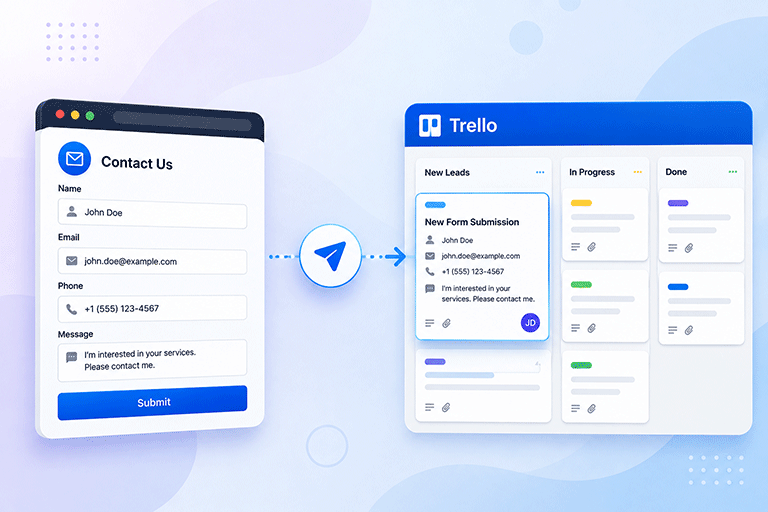
A better approach is to create Trello cards automatically whenever someone submits a website form.
This keeps your team organized, reduces manual work, and ensures every enquiry becomes a task that can be tracked.
Why Use Trello for Website Forms
Trello is one of the most popular project management tools for businesses.
It helps teams organize work using boards, lists, and cards.
Each website enquiry can become a Trello card that your team can review, assign, and move through different stages.
This makes it easier to manage customer requests without relying only on email.
Which Website Forms Can Connect to Trello
Almost any website form can create a Trello card automatically.
For example:
- Contact forms
- Quote request forms
- Booking forms
- Support forms
- Consultation requests
- Service enquiries
Each submission becomes a new task that your team can manage immediately.
Save Time on Manual Work
Without automation, someone usually needs to copy information from an email into Trello.
This repetitive work adds up over time.
Automatically creating Trello cards removes this extra step.
Your team can focus on helping customers instead of copying information between different tools.
Never Miss an Enquiry
Emails can sometimes be overlooked, especially during busy periods.
When every submission automatically creates a Trello card, each enquiry becomes a visible task.
This makes it much less likely that an important customer request will be forgotten.
Keep Your Team Organized
Every business has its own workflow.
Some enquiries go to sales.
Others go to customer support.
Some require follow up calls or site visits.
By managing website submissions in Trello, your team can:
- Assign tasks
- Add due dates
- Leave comments
- Track progress
- Mark work as complete
This keeps everyone working from the same system.
Continue Receiving Email Notifications
Creating Trello cards does not mean you have to stop using email.
Email notifications still let you know immediately when someone submits a form.
Trello helps your team manage the work that follows.
Using both together creates a more complete workflow.
Store Every Submission
Task management is important, but you should also keep a permanent record of every website submission.
A dashboard allows you to:
- Search previous enquiries
- Review customer information
- Check submission history
- Respond to customers later
This gives your business both organized tasks and reliable submission records.
Keep Your Existing Website Form
You do not need to redesign your contact form to connect it with Trello.
Your visitors continue using the same form they already know.
Only the submission process changes behind the scenes.
This means you keep:
- Your website design
- Your branding
- Your form layout
- Your customer experience
While improving how enquiries are managed.
Connect Trello With SmartFormify
SmartFormify allows you to connect your website forms directly with Trello.
Once connected, every successful submission can automatically create a Trello card.
At the same time, SmartFormify can also:
- Store submissions
- Send email notifications
- Display after submission messages
- Help reduce spam
- Organize responses in one dashboard
Your team receives an organized Trello task while every submission is also safely stored inside SmartFormify.
A Practical Example
Imagine a home renovation company.
Customers visit the website and request quotes for kitchen and bathroom renovations.
Previously, the office manager copied every enquiry from email into Trello.
This took time and occasionally led to mistakes.
After connecting the website form to Trello through SmartFormify, every quote request automatically creates a Trello card.
The sales team immediately sees the new request, assigns it to a team member, and tracks progress from the first enquiry to the completed project.
Nothing needs to be copied manually.
Test the Trello Integration
Before relying on automation, test the integration.
Submit several sample enquiries and confirm that:
- The form submits successfully.
- A new Trello card is created.
- Customer information appears correctly.
- Email notifications arrive if enabled.
- The submission is stored in your dashboard.
Testing helps ensure your workflow is ready before real customers begin using the form.
Common Mistakes to Avoid
Many businesses continue creating Trello cards manually even though automation is available.
Others use Trello without keeping a permanent record of submissions.
Some forget to test the integration after updating their website.
Another common mistake is relying only on email instead of using a task management system.
Avoiding these mistakes helps your team stay organized and respond more efficiently.
Final Thoughts
Website enquiries often become tasks that require action from your team.
Automatically sending form submissions to Trello removes repetitive work, improves organization, and helps ensure every customer request is tracked from the moment it arrives.
With SmartFormify, you can connect your existing website forms to Trello without changing their design.
Every submission can automatically become a Trello card while SmartFormify also stores the response, sends email notifications, helps reduce spam, and provides one central dashboard for managing all your customer enquiries.
Share this post


Latest posts
8 min read
How to Collect Leads From ChatGPT, Lovable, Bolt and Other AI Websites
7 min read
How to Connect AI Built Websites to a Form Backend
8 min read
How Agencies Can Manage Client Website Forms More Efficiently
8 min read
Best Contact Form Solution for Small Businesses
5 min read
How to Centralize Leads From Multiple Websites